- MySitemapGenerator
- Help Desk
- Creating RSS Feeds
Creating RSS Feeds
The tracking page must be publicly accessible, contain recognizable HTML code, and include links to internal publication pages.
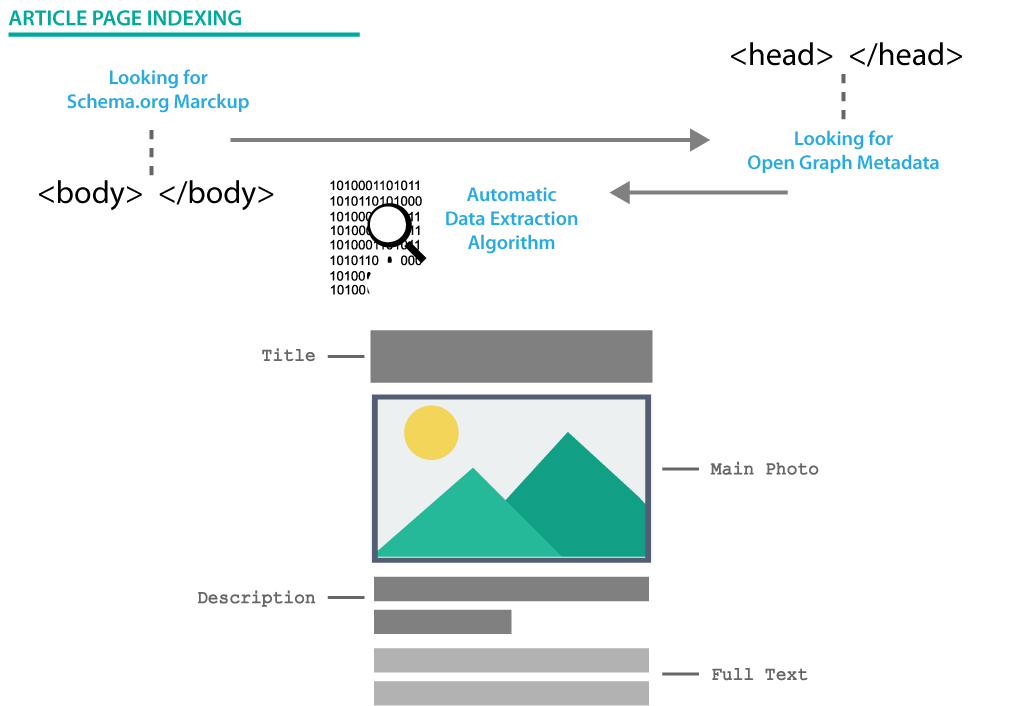
The RSS feed is generated based on content retrieved from the website. Data sources may include Schema.org markup and Open Graph Article metadata, along with standard HTML document tags and available page content.
MySitemapGenerator supports the following Schema.org types:
- Article
- NewsArticle
- BlogPosting
- LiveBlogPosting
Additionally, MySitemapGenerator supports Open Graph metadata for the Article type.
If no structured data is detected, MySitemapGenerator attempts to automatically identify publication content using an AI-based extraction algorithm.
The easiest way is to create a link to your RSS feed and place it on your website. By clicking it, visitors can subscribe to updates through their RSS reader:
<a href="URL**">Subscribe via RSS</a>
Another method is to add the following meta tag to the <head> section of your HTML page:
<head> … <link rel="alternate" type="application/rss+xml" title="Feed Title*" href="URL**"> … </head>
This tag allows RSS reader apps, browser extensions, and aggregators to automatically discover your feed.
MySitemapGenerator generates RSS feeds in standard RSS 2.0 format, ensuring compatibility with most RSS readers, content aggregators, and automation platforms.
Yes. The generated RSS feed can be used with:
- RSS readers
- Email marketing automation tools
- Social media auto-publishing tools
- Content aggregation platforms
Simply provide the RSS feed URL in the corresponding service.
If your website organizes content by categories and provides dedicated category pages, you can generate RSS feeds based on those specific tracking pages.
For example:
- /blog/
- /news/
- /category/industry-updates/
The feed will then include publications discovered within that section.
Yes. You can further restrict which articles are included in the feed using the Link search pattern setting.
In the Link search pattern section, enter a path pattern in the Path value field to define which URLs should be included in the feed.
Using the link selector
At the end of the Path value field, there is a trailing icon that opens the link selector (active after you enter the target URL).
The selector displays links retrieved from the specified page. When you click one of the links, the system automatically generates and fills in an appropriate path pattern based on that URL.
Manual configuration
You can also manually enter a custom pattern using supported wildcards:
- * - matches any sequence of characters
- $ - matches the end of a URL
Manual configuration allows you to create highly flexible filters for advanced scenarios.
Examples:
- /blog/* - includes all articles under the /blog/ section
- /news/* - includes all URLs within the /news/ directory
- /blog/*.html$ - includes only blog URLs ending with .html
Can’t find the answers you’re looking for? We’re here to help.
Contact support